FileZilla is a free tool that allows you to connect with and access SFTP folders.
-
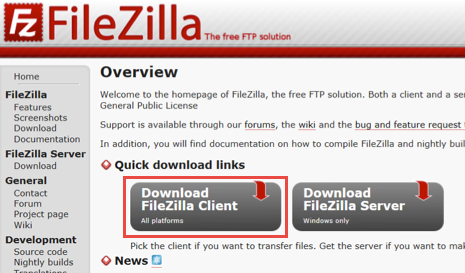
Go to http://filezilla-project.org/ and click on the Download FileZilla Client (All Platforms) button.
-
On the Download FileZilla Client for Windows page, select Show additional download options.
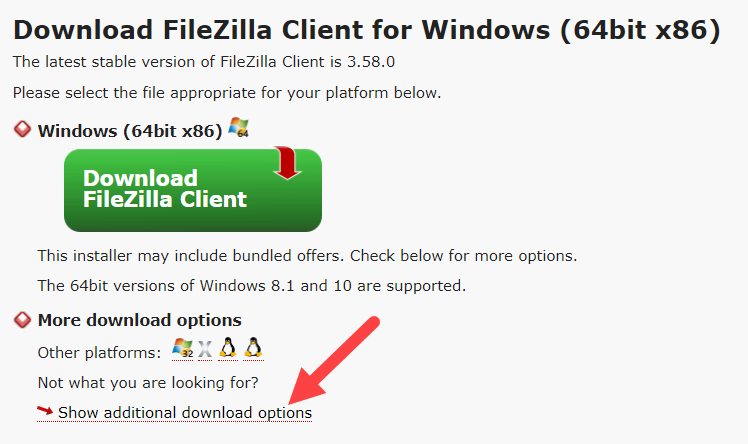
Note: Do not select the option to Download FileZilla Client for Windows.
-
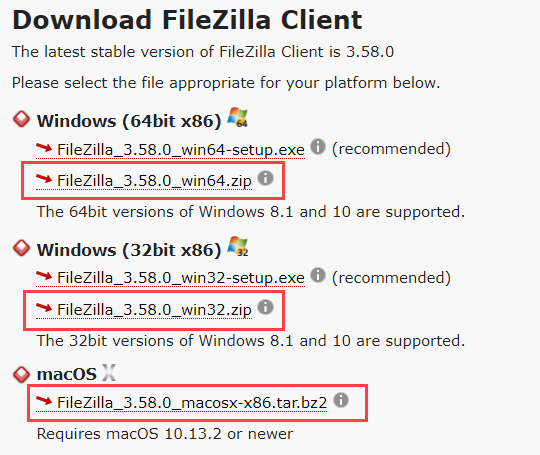
A new window will appear, click the appropriate .zip file option for your software (Windows 64, Windows 32, or MacOS).
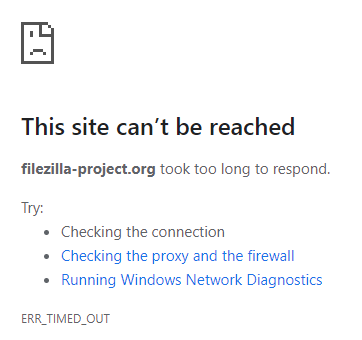
Note: If you are connected to your organization's VPN and receive the following error message, disconnect from the VPN to download the file. If you encounter further issues or are not able to download the file you may need to contact your Network Administrator for assistance.
-
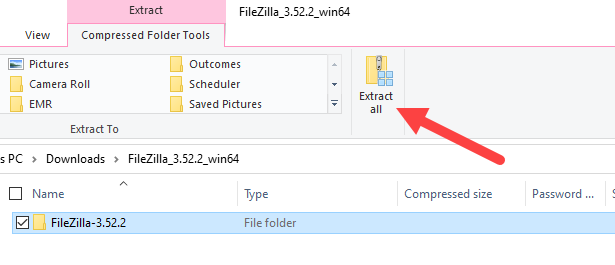
Once the .zip file has been downloaded, open the download file location and click Extract All.
-
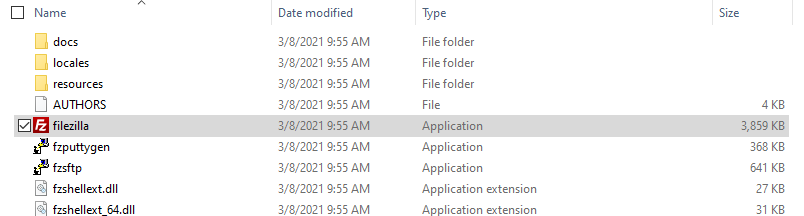
Double-Click the Filezilla application file to open FileZilla.
Comments
0 comments
Article is closed for comments.