This dashboard provides a review of all lab orders, requisitions, and results, including signature statuses.
Data Refresh Schedule
The data presented in the BI Dashboards is not updated in real time, which means there is a delay between when data is entered into the EMR and when it is viewable in the BI Dashboards. Instead, there are four scheduled BI data refreshes each work day at 3 AM, 9 AM, 1 PM, and 5 PM. There are two scheduled refresh periods on each weekend day at 3 AM and 3 PM. All times are EST.
Note: These BI data refresh periods typically last 4-6 hours and while the refresh process is uploading to the dashboards (usually the last 2 hours of the process) data may not be present or may be incomplete.
Data entered after a refresh will not be reflected in the dashboards until the following refresh is completed. When using the dashboards for analysis it is recommended to use yesterday as the most recent time period to ensure you are working with a complete data set.
Lab Orders and Results
To navigate to the tab, click on Reports > Kipu BI > Revenue Cycle.
General Controls
There are a few icons and elements that are the same across all tabs.
-
Control updates
- The refresh (circular arrow) allows you to reset the dashboard to default after you change the controls.
- The back arrow allows you to undo the most recent change.
- The forward arrow allows you to redo the previous action.
- In order to access the controls on any tab, click on the down arrow.
- You can hover over each widget to access the two indicated icons.
- Click on the two arrows to expand the widget to full screen
- Click on the three vertical dots to view summary data or export the information in the widget to CSV.
- Use the options provided to print the current tab to or download it as a PDF file. Clicking View downloads will allow you to view all downloads created from that tab previously, and to download them again.
- Hovering over widgets with charts, graphs, and other visual elements will display additional information.
-
On all tables, you can adjust the width of a column by hovering over the divider line, then clicking and dragging it to the desired size. Doing so can, in the case of some of the larger tables, help you view more columns at once.
You can also click on the column title to change whether the column is sorted by alphabetical or reverse alphabetical order.
-
Finally, each section has Controls, which have different defaults and purposes. However, the mechanics of each section are similar. To access the controls for each tab, simply click anywhere on the controls row.
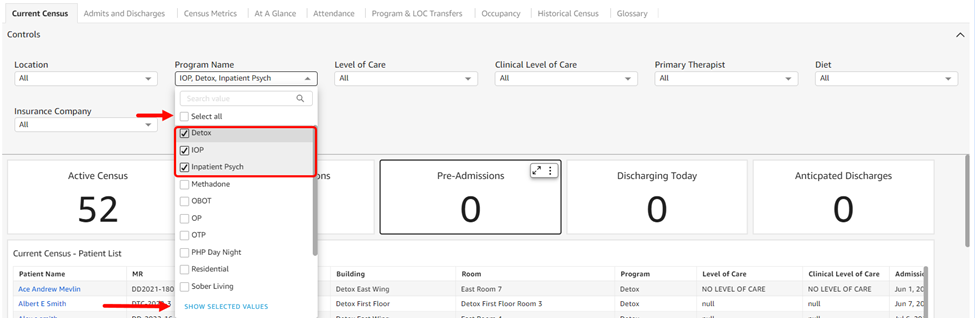
Most drop-downs contain a series of options and many default to selecting all. You can choose specific items by unchecking the Select All option and then checking off each item individually. If you click the Show Selected Values option at the bottom of the list, you will only see the items you selected.
- If you hover over each drop-down, three dots appear, allowing you to access the Reset option.
- The refresh (circular arrow) allows you to reset the dashboard to default after you change the controls.
Lab Orders
-
Controls default to All.
- Location: Locations available in the instance are listed in alphabetical order.
- Current Census: Choose Yes or No from the drop-down list, which defaults to Yes.
- Collected Date: Date the lab sample was collected
- Primary Therapist: Lists primary therapists in alphabetical order.
- Total Lab Requisitions: The total number of existing lab requisitions
- Lab Orders Pending Signature: Number of lab orders awaiting signatures
- Requisitions by Location: This chart breaks down the number of lab requisitions from each location
- Top 10 Lab Orders: This chart displays the top ten most commonly requested lab tests for both orders and results.
- Lab Orders Pending Signature by Physician: This chart shows which physicians have lab orders awaiting their signature broken down by lab
-
Orders Table: This table contains the following order details:
- Patient Name: Patient's full name
- MR: Patient's MR number
- Location Name: The name of the facility where the patient is located
- Level of Care: UR level of care option
- Order Name: The name of the order
- Start Date: When the order becomes active (aka when a requisition can be created and sent)
- Duration: How long the order lasts
- End Date: The date when the order expires
- Frequency: Indicates when the test is due and when the patient will be tested
- Review Status: Indicates whether or not the physician signed the lab order
- Status: The status of the order (active/discontinued, etc.)
- Physician: The name of the physician who ordered the test
Lab Requisitions
- Requisitions Sent By Lab: This chart displays the labs where requisitions are sent
- Requisition Statuses: This chart displays the requisition statuses by location
- Requisitions Sent by Collection Date: This chart displays requisitions sent by date the specimen was collected
- Requisitions Sent by Sent Date: This chart displays requisitions sent by the send date.
-
Requisitions Sent: This table shows the following details for all requisitions sent.
- Patient Name: Patient's full name
- MR: Patient's MR number
- Location Name: The name of the facility where the patient is located
- Level of Care: UR level of care options are listed in alphabetical order
- Specimen ID: The ID number on the specimen sent
- Specimen Source: The source of the specimen (urine, etc.)
- Collection Date: Date the lab sample was collected
- Primary Therapist: Lists the patient's primary therapist
- Created By: The user who created the requisition
- Sent Date: Date the requisition was sent
- Status: The requisition's status (sent, created, etc.)
Lab Results
-
Controls default to All.
- Location: Locations available in the instance are listed in alphabetical order.
- Current Census: Choose Yes or No from the drop-down list, which defaults to Yes.
- Collected Date: Date the lab sample was collected
- Received Date: Date the lab sample was received
- Primary Therapist: Lists the patient's primary therapist
- Total Lab Report: Total number of lab reports in the instance
- Unmatched Lab Reports: Lab reports that have not been properly matched to patients are displayed here. For instructions on matching lab reports to patients, click here.
- Lab Reports Pending Doctor's Signature: Lab reports that still require a doctor's signature
- Results by Location: Total number of lab results broken down by location
- Abnormal Results Current Census: The total number of abnormal results per test for patients in the current census (of current census is selected)
- Results by Lab: Results divided by lab where the samples were sent
- Lab Reports Pending Signature by Physician: Lab reports broken down by physician whose signature is still pending
- Results by Abnormal Flag: Results displayed by abnormal flag e.g. normal/abnormal/out of range, depending on lab configuration
- Results by Specimen Source: Results displayed by specimen source
- Results by Description and Outcome: This chart displays results by test stacked by result flag
- Results by Gender: This chart shows the total number of results by patient birth sex
- Top 10 Abnormal Results for Males: Top ten tests returned with abnormal results among male patients broken up by quantification type
- Top 10 Abnormal Results for Females: Top ten tests returned with abnormal results among female patients broken up by quantification type
- Abnormal Result Trends by Collection Date: This chart shows the number of abnormal results across all patients in census (if current census is selected) for each test per collection date. The trend helps identify if there are periods when patients tend to relapse more often or if any other abnormalities are present.
-
Patient Test Results Table (Last 365 Days): This table displays details for all patient test results in the last year:
- Patient Name: Patient's full name
- MR#: Patient's MR number
- Location: The name of the facility where the patient is located
- Lab: The name of the lab where the test was performed
- Primary Therapist:Lists the patient's primary therapist
- Specimen Source: The source of the specimen (urine, etc.)
- Collect Date: Date the lab sample was collected
- Received Date: The date the lab received the sample
- Result: Result description (e.g. what substance/criteria was tested)
- Abnormal Flag: Test's outcome provided by the lab
-
Result Status: The result status of the test provided by the lab
- Accession Number: The order's accession number (often matches Specimen ID)
Comments
0 comments
Please sign in to leave a comment.