The Nurse Review dashboard tab displays all new orders made with the Pending Nurse Review status, allowing the nurse to acknowledge that they are administering a new medication order.
Required Permissions
This tab is available to Super Admins and users with the Nurse permission enabled. To enable this feature, Super Admins must navigate to Settings > Instance, and enable the setting Require New Orders Acknowledgment. If you are in a master instance, check out the Location Settings section of this article for more information.
Nurse Review
- To navigate to the Nurse Review tab, click on the Dashboard tab, then on Nurse Review.
- From the Nurse Review tab, you can search for orders by the following criteria or perform the following actions:
- Medication: To search orders by medication, click on the drop-down and choose the desired medication from the list.
- Patient: To search orders by patient, click on the drop-down and choose the desired patient from the list.
- Review Status: You can choose Pending Review and/or Nurse Reviewed. Pending Review will show all items awaiting review, while Nurse Reviewed will show all items which have already been reviewed.
- Order Start Date: Choose Order Start Date or Nurse Review date from this drop-down.
- From Date: If you wish to view orders with a start date in a certain time frame, enter the start date here.
- To Date: This field automatically populates with the current date, but can be changed by clicking on the field and choosing the desired date/time from the calendar.
- Clear all filters: Clears all search filters
- Export to PDF
- If an interaction check/warning (allergies, medication interactions, etc.) is present, an icon will appear.
- Otherwise, you can review each order individually by clicking on the drop-down list in the Nurse Review column and selecting Nurse Reviewed.
- Next, you will see the following pop-up window. Click Confirm if the information is correct. Click Cancel if there is an error.
- If you are only viewing items that are in the Pending Review Status, the order will disappear. However, if your view includes orders with the Nurse Reviewed status, you will see the order, and the name of the reviewer will appear in the Reviewed By/At column together with the date and time.



- You can also review multiple orders at a time by selecting the check boxes next to the orders you wish to review, then clicking the Review Selected Orders button.
- Once again, a pop-up window will appear, but this time it will ask you if you are sure you wish to review multiple items, and will not display the item details. Click Continue to proceed.
- As with orders reviewed singly, if your search criteria include orders that have been reviewed, you will see the reviewed orders with the name of the reviewer and the date/time of the review in the Reviewed At/By column.
Doctor's Orders
- Orders can also be individually reviewed from the Doctor’s Orders tab of a patient's chart by selecting Nurse Reviewed.
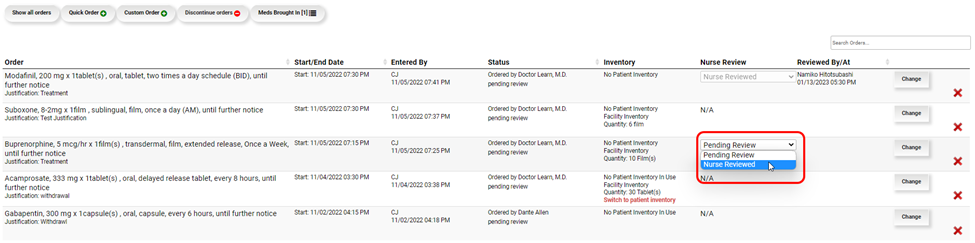

- If the review items in the Nurse Review pop-up are correct, click Confirm.
- Once confirmed, the Nurse Review Status will now be grayed out and say Nurse Reviewed, while the name of the reviewer and the date and time will appear in the Reviewed By/At column.

Med Log Tab
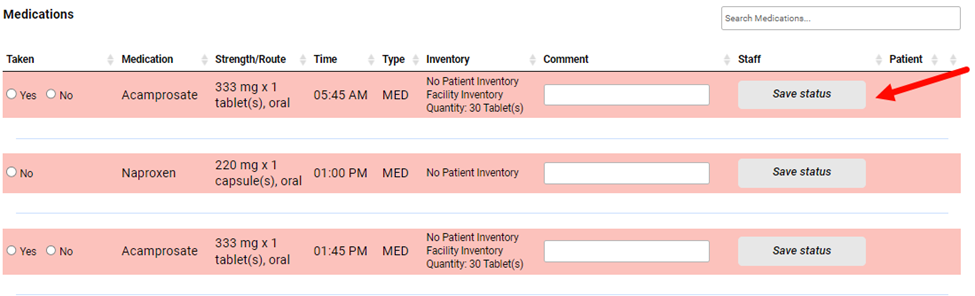
- Orders pending Nurse Review will be grayed out in the Med Log tab until the review is completed.

- Only Nurse Reviewed orders will be available for administration in the MAR.
Comments
1 comment
thank you for the information
Please sign in to leave a comment.