From the Patient Portal, you can review your current medications and upcoming appointments, add files, and sign shared documents and treatment plans. The Patient Portal is also mobile-responsive, so you can access the portal on whatever device is most convenient for you!
Creating an Account
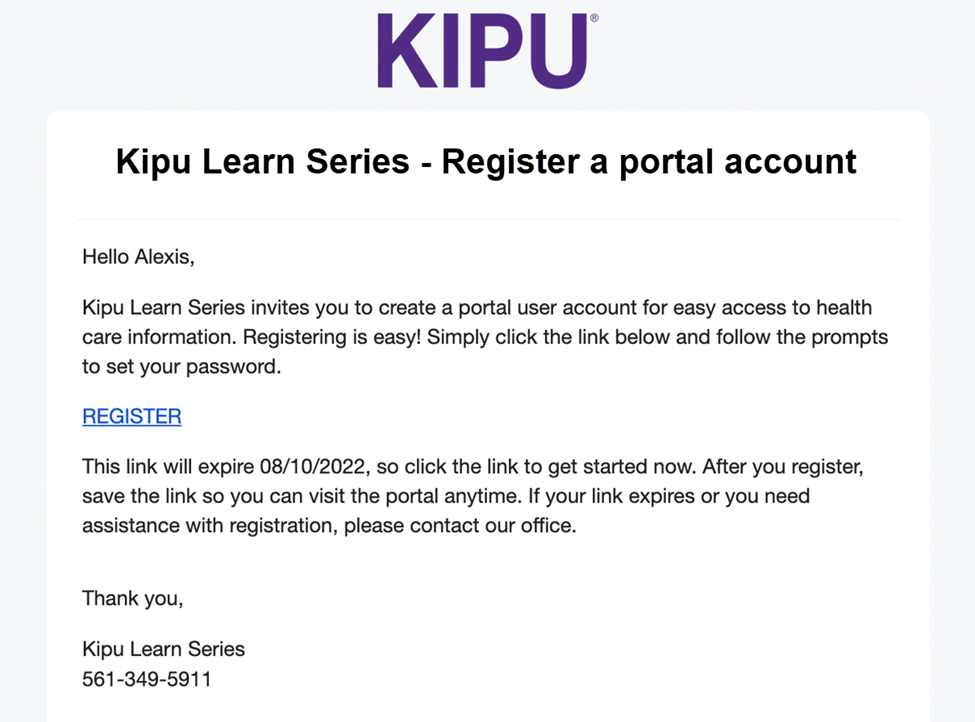
Register a new portal account following the instructions in the email invitation received. If you're having trouble locating the email, try searching for emails from portal@kipuhealth.com.
-
Click the Register link in the email received.
-
Create a password. Passwords must be 8 characters in length, and have at least one upper case letter, one lower case letter, and one number or symbol.
- Agree to Terms of Service & Privacy Policy and click Create.
- You’ll be prompted to login with your email address and the password you just created.
Reset Password
Easily reset a forgotten password using the Forgot password? Link on the login window.
User Roles
In addition to the patient, guardians and/or guarantors can also be given access to certain areas of the Portal and to certain information appropriate to their roles.
Click here for the Messages walkthrough.
Dashboard
Once you log in, you'll be directed to your dashboard.
From this page, you can view:
|
|
Show More
Open any of the sections by clicking Show More on the related tile or by selecting an item from the menu in the left sidebar.
My Information
This section contains demographic information pulled from the electronic medical record software used by the organization (Kipu EMR). This includes demographics, insurance, and contact information.
My Appointments
If the treatment location uses the Kipu Calendar, you can view your upcoming (and past) appointments. If the treatment location uses the Kipu Scheduler, you can view your upcoming (and past) appointments and group sessions and start telehealth visits.
-
Join any telehealth sessions from the Click Here to join link.
-
Use the Add to Calendar link to add the appointment or session to your personal calendar.
My Medications
If the treatment location uses the Kipu ePrescribe feature, you can view your default pharmacy and review active and inactive prescribed medications. This includes the medication name, quantity, strength, route, dosage form, frequency, and duration.
My Documents
Review and sign shared documents these can be consent forms, evaluations, etc.
-
Pending documents require action: review, complete, and sign.
- Click on the Pending document to review. Then, use the Sign & submit button to complete the form.
- Click on the Pending document to review. Then, use the Sign & submit button to complete the form.
-
Complete documents are read-only and available for your review.
- A document that is completed but says Revoke in the Actions column can be revoked.
- Revoked documents are consents which have been revoked by any one of the signers. Any revoked consents will have the revocation date on file.
- You can view the date a completed document was shared or updated, and you can click on the name of the document to review it.
My Treatment Plans
Review and sign shared Treatment Plans. You can also view the Care Team assigned to your account if one has been assigned.
Click on the > to open the treatment plan. From this page, review the document and click Sign & Submit.
My Files
Upload files, insurance cards, IDs, and photos to the portal. These photos will be shared with your treatment facility for inclusion in your patient record. To add a file: select a File Type, locate the file from your computer, and click Upload.
My Messages
In My Messages, you can Compose messages to members of your care team by clicking on the Compose button.
Add a subject, and write your message in the Message field.
You can also respond to messages from your care team by clicking on the envelope icon.
Click on the message you wish to respond to, then click the respond arrow indicated below.
Enter your message then click the Send button. For a more detailed guide on the My Messages section, check out this article!
Multiple Charts
If you have access to multiple patients (for example, if you are a guardian and a patient, or a guarantor on multiple patients, etc.), you will see tabs for each patient across the top of the Portal.
If the name is in purple, that is the patient whose information you are viewing, while black indicates that you are not viewing that patient's information.
If the patient has a carrot in their tab, it means that they have multiple charts. The purple text indicates the most recent, active chart. In this case, black text indicates completed charts.
My Payments
If your facility has elected to use Patient Payments, you may see this section in your Portal. If it is present, you will be able to make payments to the facility through the My Payments section.
For detailed instructions on completing payments, and on the payment method options check out this article!
Comments
0 comments
Article is closed for comments.