The Phases report provides an overview of patient attendance data and phases, including historical requirements metrics based on the facility's internal protocols. From this report, you will be able to review the data coming from Phase > Current tab within the patient’s chart. Be advised that the Phase is assigned to the patient when the medical staff places an order in the MAT Order tab.
Need help setting up phases and phase requirements? Check out this article for instructions.
Create the Report
Required Permissions: Super Admin, Records Admin, and users with the Manage Reports feature can create this report. Users with the View Report feature can view existing reports but cannot make changes.
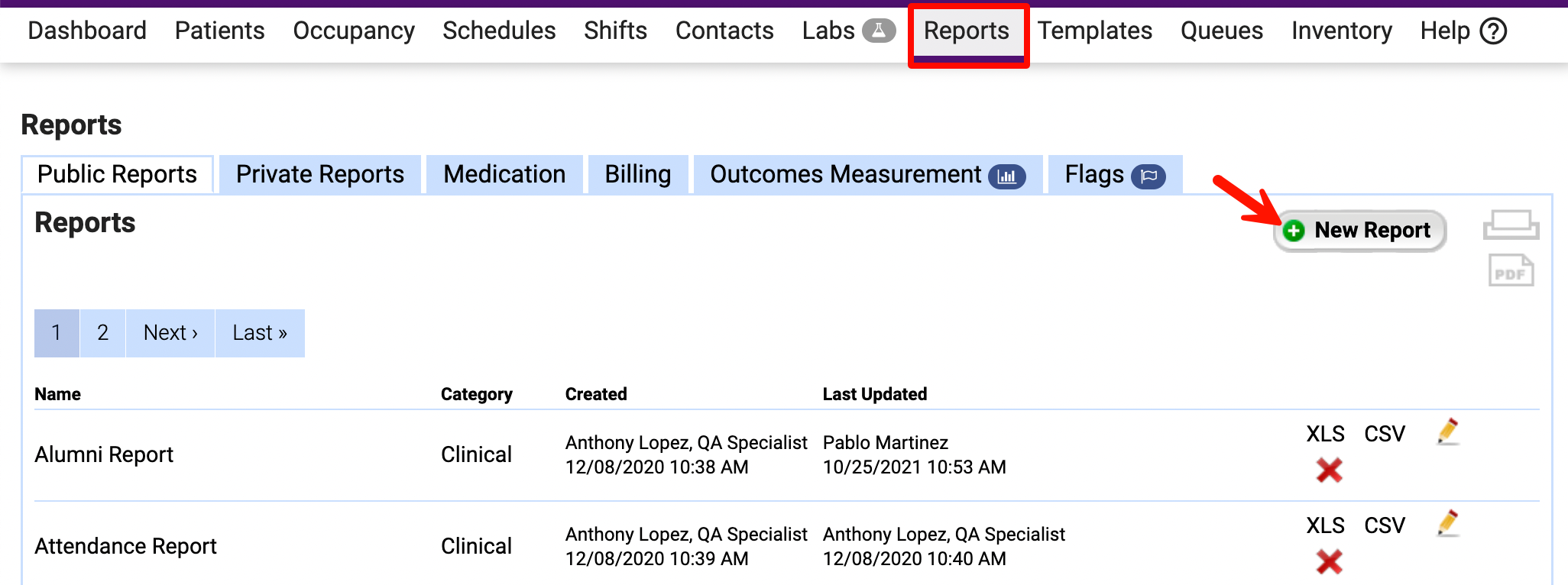
- Open the Reports tab. Here, you can review and update any existing reports in this section, as well as create new reports. Click the New Report button.
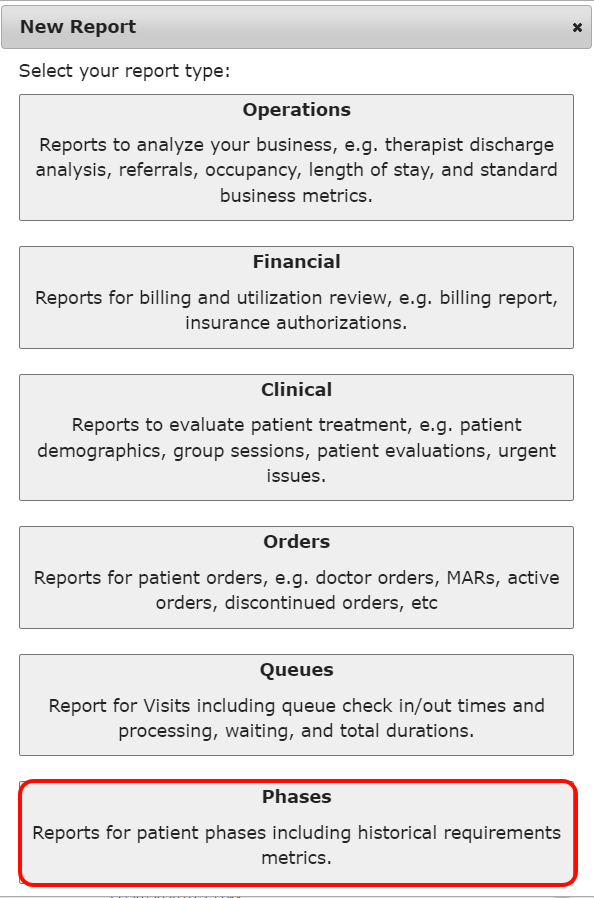
- Select Phases for the report type.
- Enter your reporting parameters.
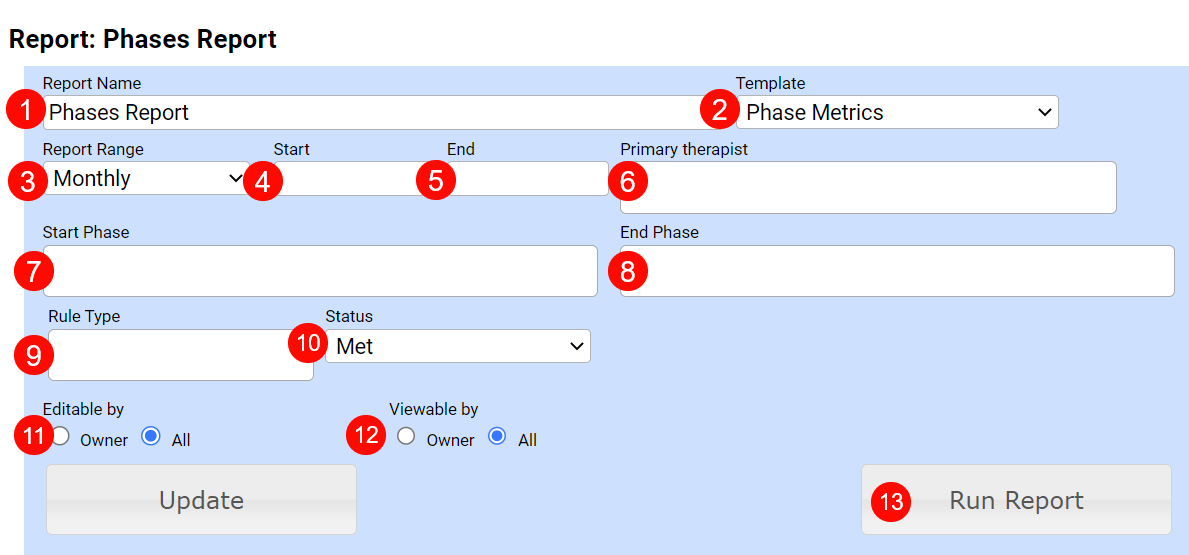
- Report Name
- Template: Defaults to Phase Metrics.
- Report Range: Defaults to Monthly.
- Start: Enter the month you would the report to begin pulling data from.
- End: Enter the final month you would like the report to pull the data from.
- Primary Therapist: Select one or more clinicians as desired. Note: Leaving this field blank will show all primary therapists by default.
- Start Phase: Choose one or more Start Phases, as desired.
- End Phase: Select one or more End Phases, as desired.
- Rule Type: Select one or more rule types including Drug Screen, Normal Lab Result, Group Session, and/or Individual Session.
- Status: Specify whether to search for patients who meet the requirements (Met) for the above rules or those who did not (Unmet) based on your facility protocols.
- Editable By: Determine who can edit the report using the radio buttons.
- All: The report can be edited by any user who has access to it.
- Owner: The report can be edited by the report's creator or a Super Admin that has a direct URL link to the report.
- Viewable By: Identify who can view the report using the radio buttons.
- All: The report is available under Public Reports for all users who have access to Reports.
- Owner: The report is available under Private Reports for the current user, or by using the direct URL.
- Click Run Report.
Review Report Details
Once the report runs, it will display all the patients and fields that meet the report parameters. 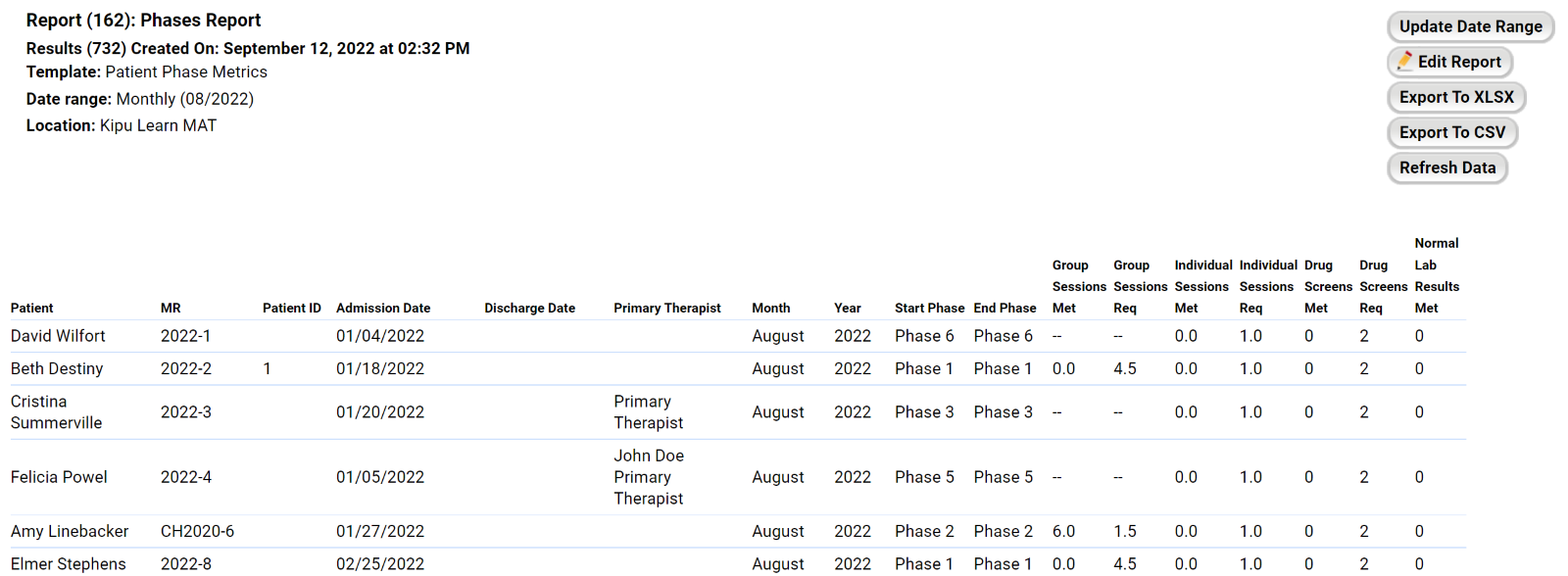
- The first section includes the report name, created date and time, template used, date range, and facility location(s).

- This next section is broken down by patients. The report includes the following tracking data like Patient Name, MR number, Patient ID, Admission Date, Discharge Date, Primary Therapist, Month(s), Year, Start Phase, End Phase, Group Sessions Met and Required, Individual Sessions Met and Required, Drug Screen Met and Required, and Normal Lab Results Met. The section also allows you to easily identify if the patient has been meeting facility requirements.
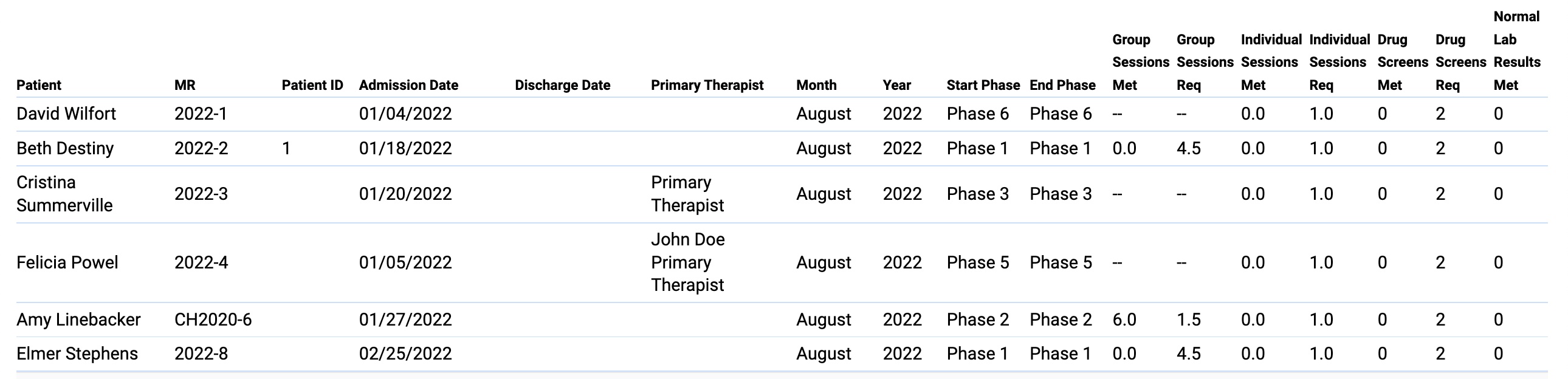
- Let's break down the Phase Requirements section. Based on the results, the facility will be able to determine if the patient has met the requirements needed to move to the following phase.
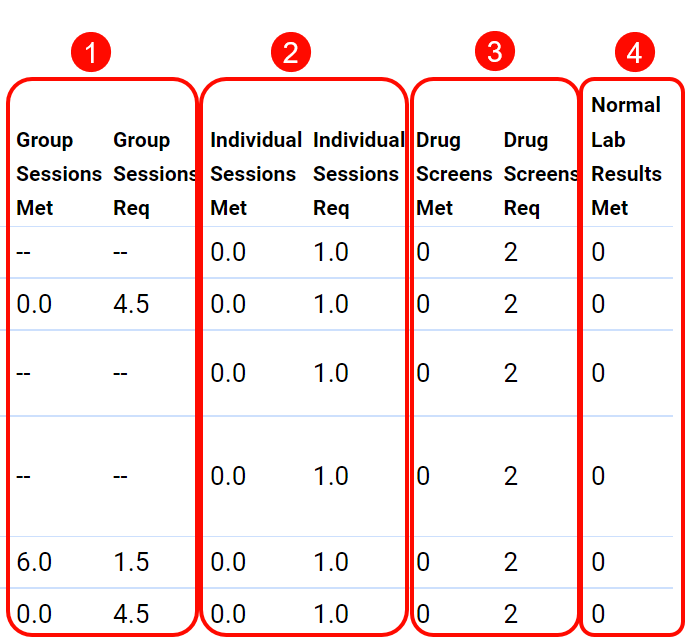
- Group Sessions Met/Required: These columns allow you to compare how many group sessions the patient attended versus how many sessions your facility requires during a specific phase to determine if the patient has met your facility's requirements.
- Individual Sessions Met/Required: Compare the number of individual sessions the patient has attended to the individual sessions your facility requires to determine if the patient has been compliant during the phase.
- Drug Screens Met/Required: Compare the number of drug screenings the patient attended against the number of drug screenings your facility requires, to determine if the patient has been compliant during that phase.
- Normal Lab Results Met: The number of normal lab results obtained during that phase.
Exporting MAT Phases Report
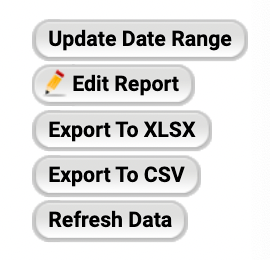
On the top right of the report, you have the following action buttons:
 |
|
Comments
0 comments
Article is closed for comments.