The Patient Evaluations report allows you to create a list of evaluation forms added to patient charts. Similar to the Dashboard, this report can be used to as a To-Do list for pending or incomplete evaluations. Additionally, you can view In Use Treatment Plans for the users without Edit Treatment Plan permissions or pull a list of all completed forms. You can also include patient demographics and other facesheet details as additional datapoints.
Default Data Points
This report contains the following default data points:
- Evaluation Name
- Status
- Created Date
- Created by
- Date of Service (Date/Time)
- Completed At (Date/Time)
- Signed By (User/Date/Time)
How to Create a Patient Evaluations Report
Super Admins, Records Admins, and users with Manage Reports feature can build the following report:
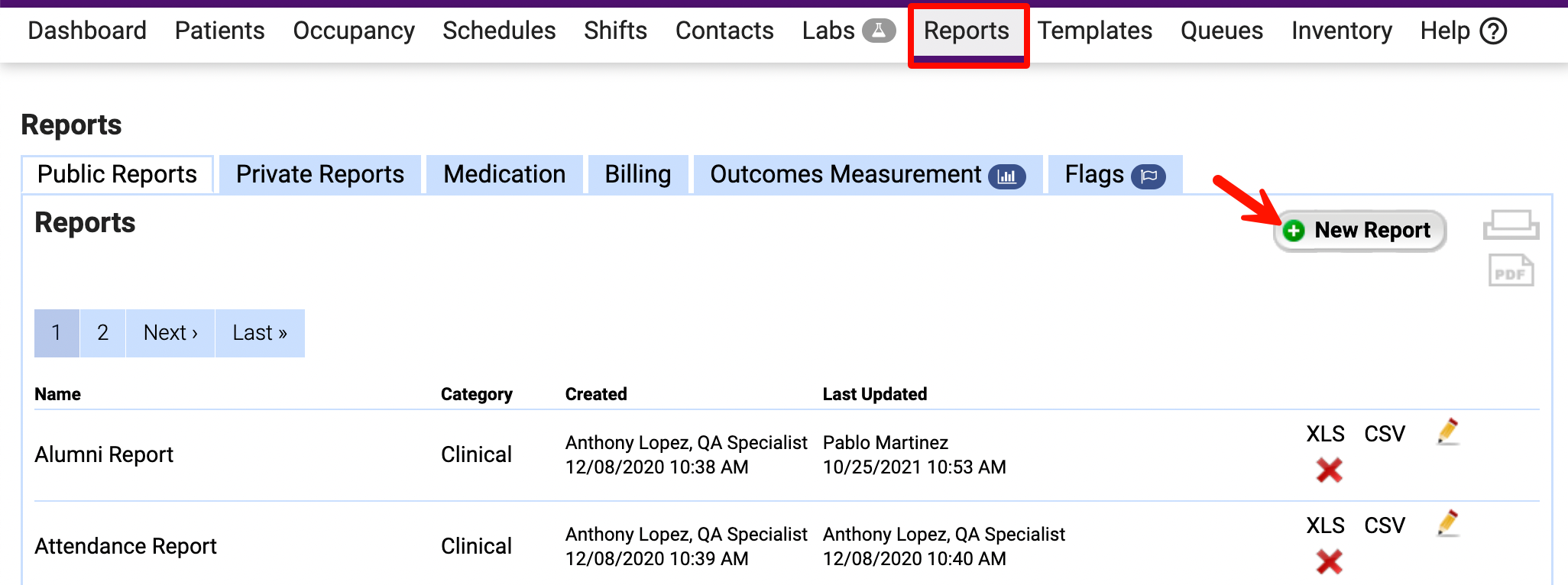
- Open the Reports tab and click New Report.
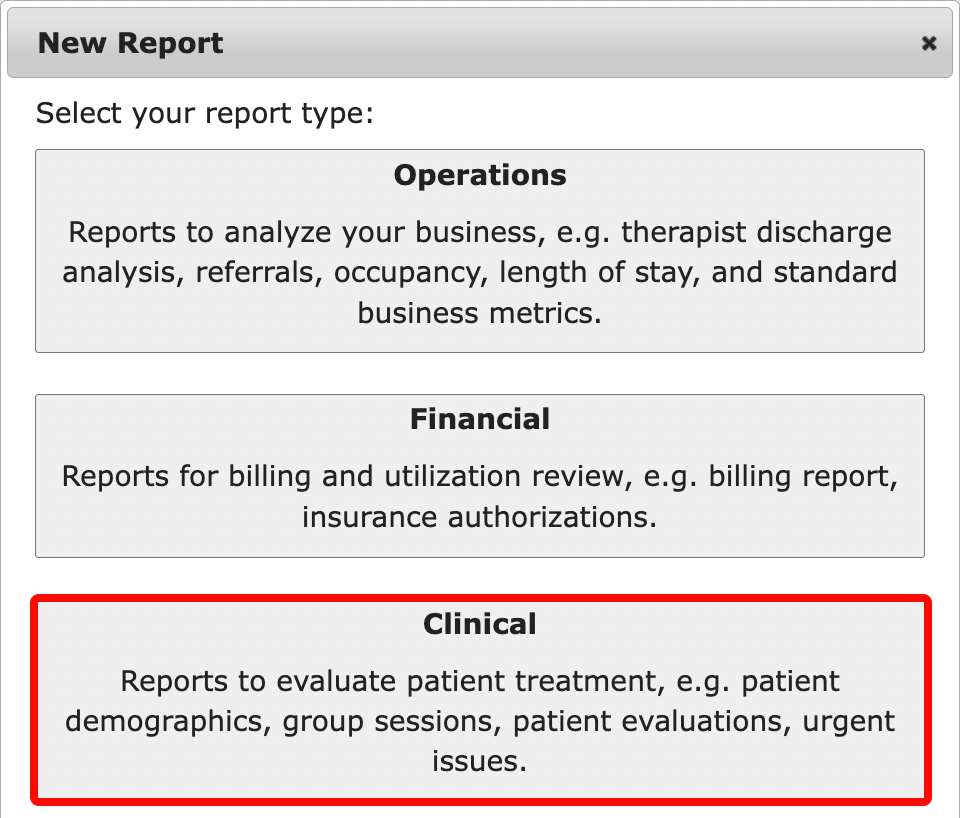
- Select Clinical for the report type.
- Enter your reporting parameters.
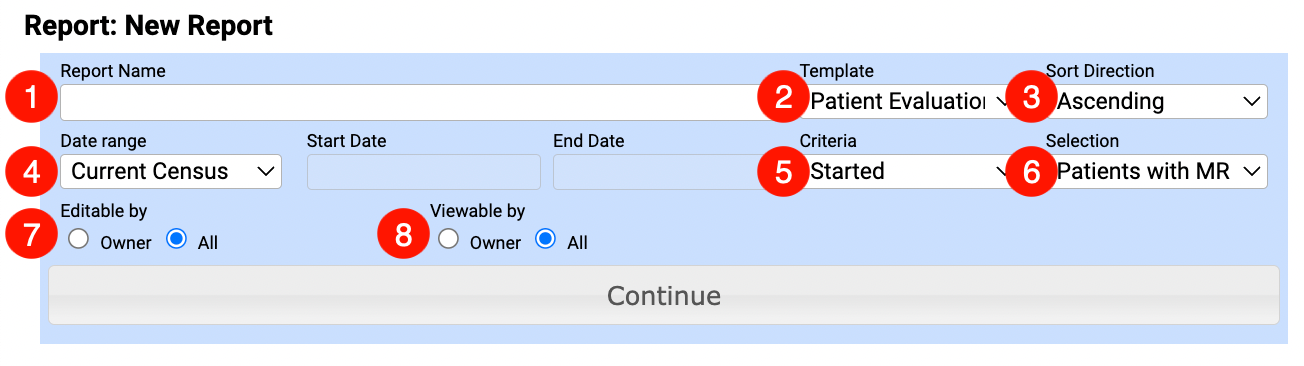
- Report Name
- Template: Select Patient Evaluations.
- Sort Direction: Select Ascending or Descending for the report order.
- Date Range: Select a date range for this report. Start Date/End Date is only available when a Custom date range is selected.
- Criteria: Use this drop-down to determine which evaluations are included in the report based on the date range selected.
- Started: Includes only evaluations in the In Progress status for the selected date range.
- Ready for Review: Includes only evaluations in the Ready for Review status for the selected date range.
- Treatment Plan In Use: Includes evaluations with Treatment Plan content type in the In Use status for the selected date range.
- Completed: Includes all evaluations in the Complete status for the selected date range.
- Incomplete: Includes all incomplete evaluations, i.e. in the Open, In Progress, Ready For Review, or In Use statuses for the selected date range.
- Updated At: Includes all evaluations based on their most recent update date.
- All: Includes all evaluations added to the patient's charts (evals in Open, In Progress, Pending Review, Complete, In Use statuses, and the forms that Require No Signature) for the selected date range.
- Selection: Choose to include Patients with MR (admitted), Patients without MR (not admitted), or All Patients.
- Determine who can edit the report using the Editable by radio buttons.
- All: The report can be edited by any user who has access to it.
- Owner: The report can be edited by the report's creator or a Super Admin that has a direct URL to the report.
- Identify who can view the report using the Viewable by radio buttons.
- All: The report is available under Public Reports for all users who have access to Reports.
- Owner: The report is available under Private Reports for the current user, or by using the direct URL.
- Click Continue.
- Use the Data Fields Selection to include any additional fields (other than the report defaults) you'd like to report on.
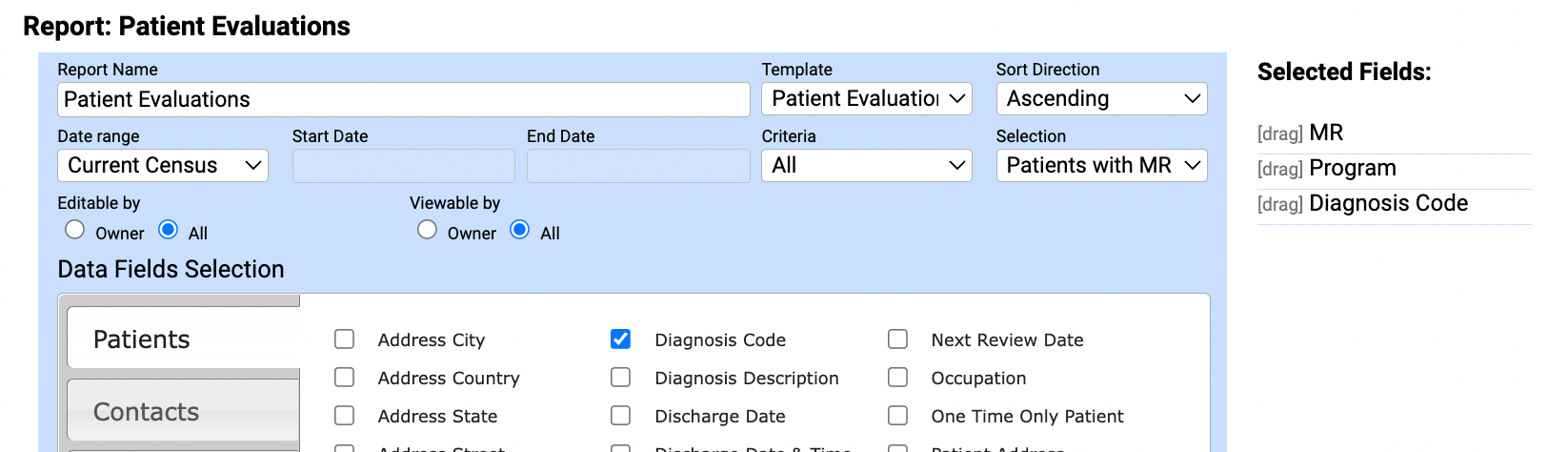
- Important: The first field selected will determine how your results are grouped. Additionally, the order of the fields selected here is how the fields will display on the report. Use the [drag] indicator to reposition as needed.
- Click Run Report to view your results.
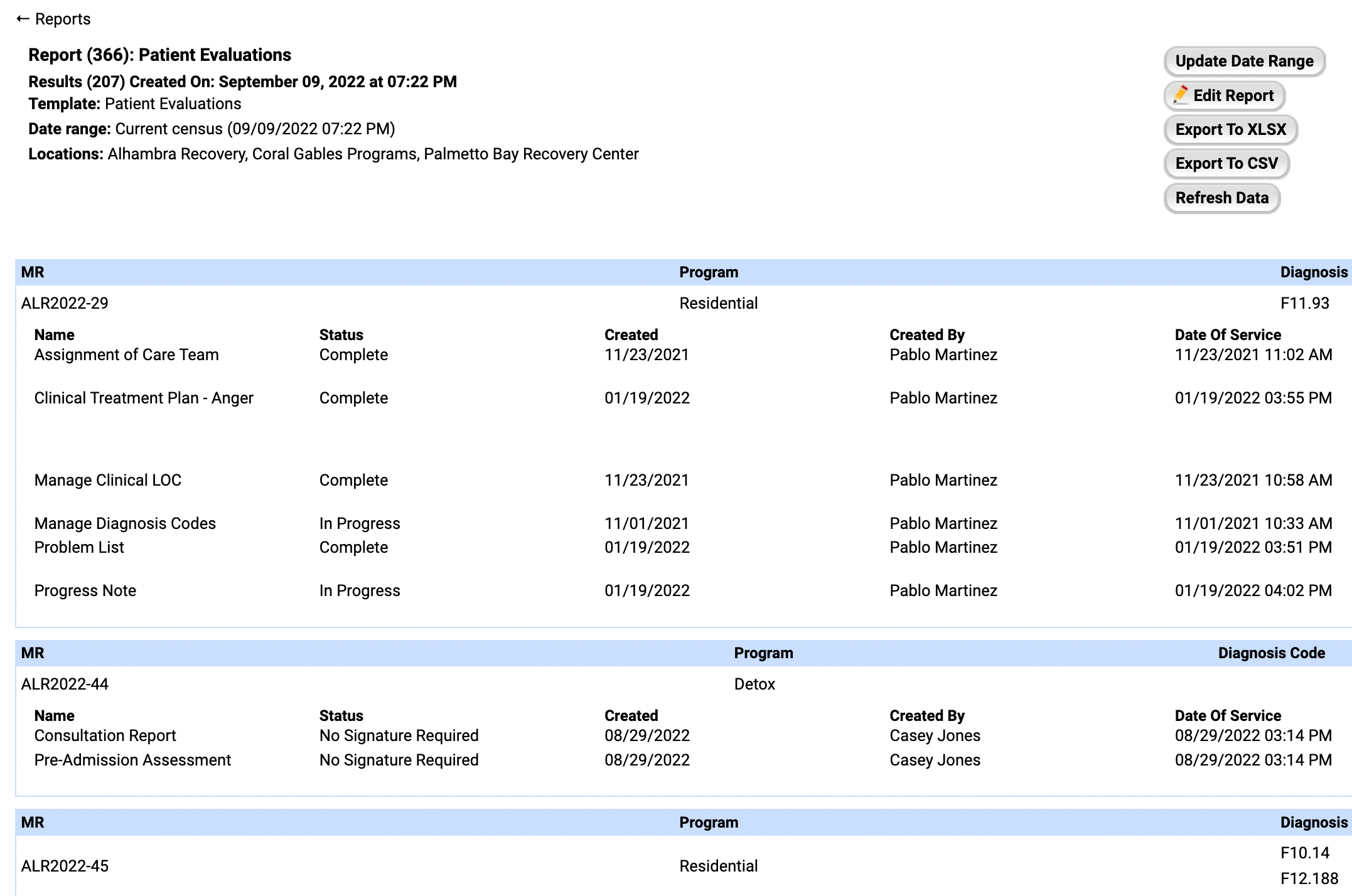
- From here, you can edit or export the report for further manipulation.
Single Location
To run this report for a specific location in the master instance, select the Location from the header and click Refresh Data. 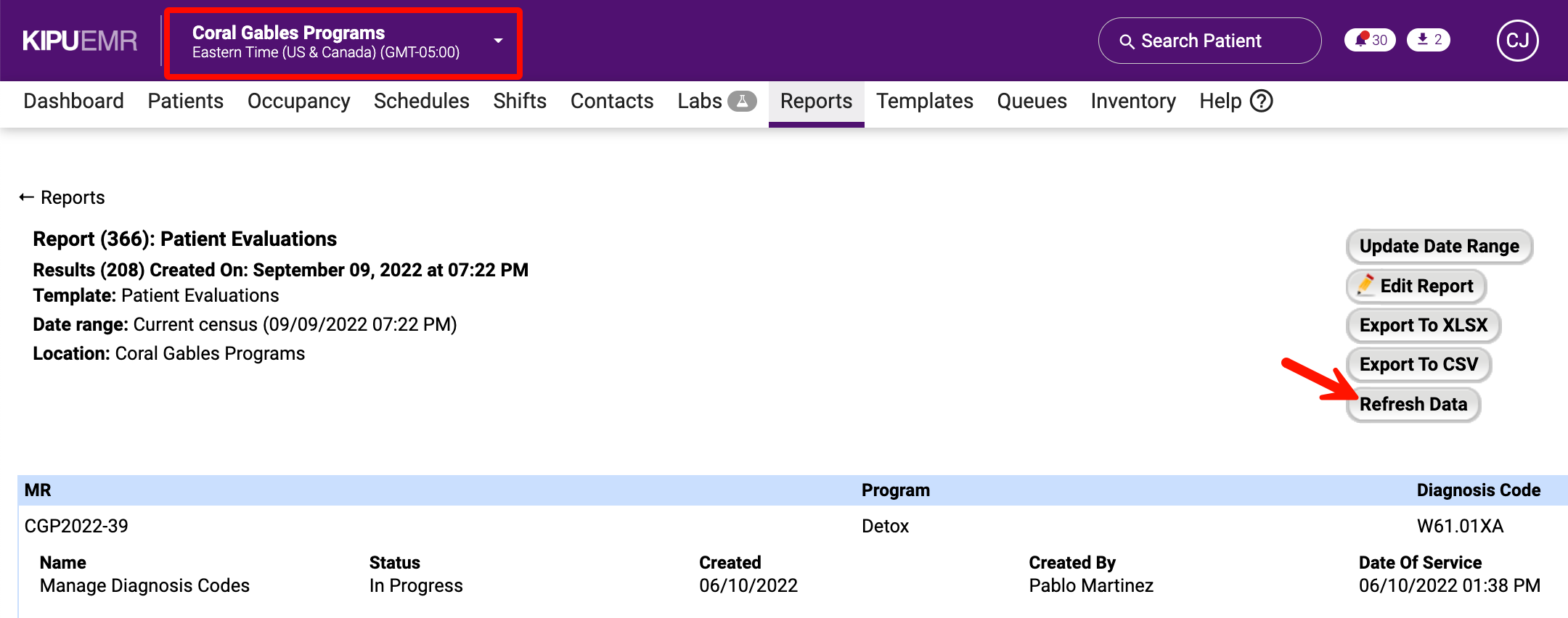
Comments
0 comments
Article is closed for comments.