The Group Sessions Report allows you to view Group Sessions data including facilitator and patient attendance.
Default Data Points
This report contains the following default data points:
- Facilitator (Group Leader)
- Group Session Title
- Group Session Topic
- Start Time (Date/Time)
- End Time (Date/Time)
- Duration (Hours)
- Status
- Signed by (User/Date/Time)
Note: Unlike some of the other reports in the Operations category, this report does not allow adding additional data points using the Data Selection Fields section.
How to Create a Group Sessions Report
Super Admins, Records Admins, and users with Manage Reports feature can build the following report:
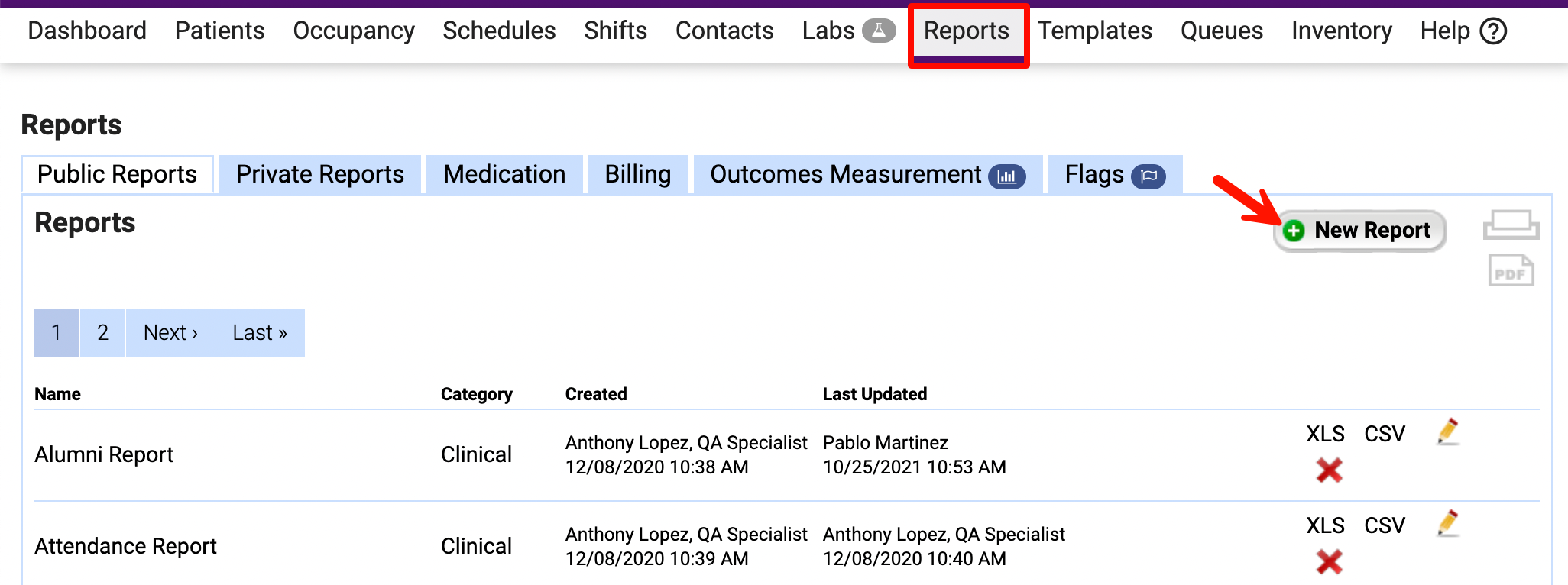
- Open the Reports tab and click New Report.
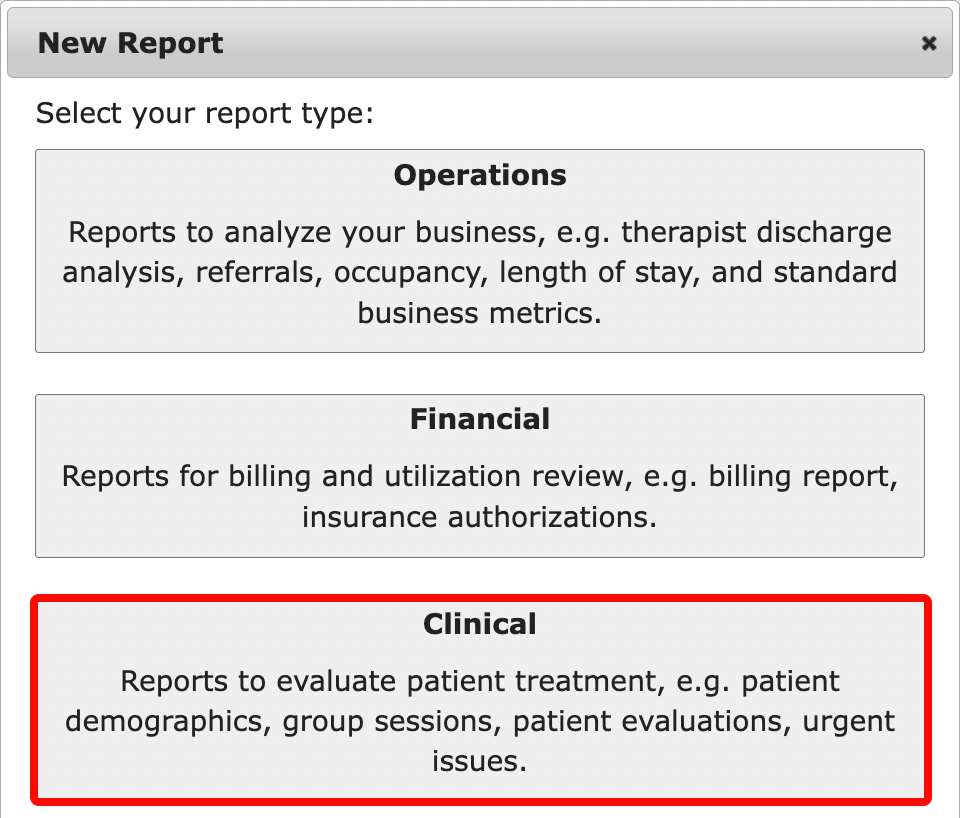
- Select Clinical for the report type.
- Enter your reporting parameters.
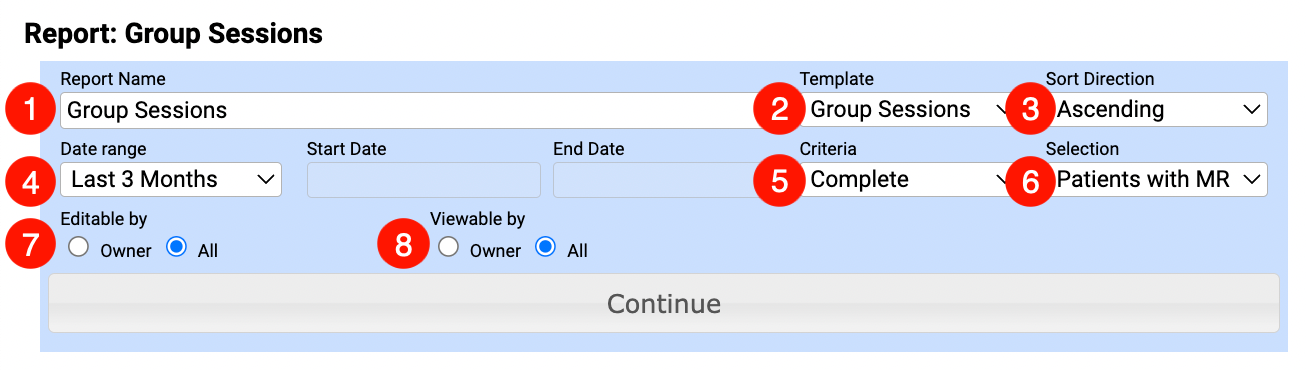
- Report Name
- Template: Select Group Sessions.
- Sort Direction: Select Ascending or Descending for the report order.
- Date Range: Select a date range for this report. Start Date/End Date is only available when a Custom date range is selected.
- Criteria: Use this drop-down to determine which Group Sessions are included in the report based on the date range selected.
- Complete: Lists only group sessions in Completed status.
- Complete with Attendance: Lists group sessions in Completed status with the list of patients added to the group sessions. If necessary, you can re-arrange this report in excel to get a general overview of a particular patient's attendance.
- Incomplete: Lists group sessions with the In Progress and Pending Review statuses.
- Incomplete with Attendance: Lists group sessions with the In Progress and Pending Review statuses and includes the patients added to the group sessions. If necessary, you can re-arrange this report in excel to get a general overview of a particular patient's attendance.
- All: Lists all started group sessions (sessions with one of the following statuses: In Progress, Pending Review, Completed).
- All with Attendance: Lists all started group sessions (sessions with one of the following statuses: In Progress, Pending Review, Completed) and includes the patients added to the group sessions. If necessary, you can re-arrange this report in excel to get a general overview of a particular patient's attendance.
- Not Started: Lists all group sessions that are available in the system within the specified date range, but were never started.
- Selection: Choose to include Patients with MR (admitted), Patients without MR (not admitted), or All Patients.
- Determine who can edit the report using the Editable by radio buttons.
- All: The report can be edited by any user who has access to it.
- Owner: The report can be edited by the report's creator or a Super Admin that has a direct URL to the report.
- Identify who can view the report using the Viewable by radio buttons.
- All: The report is available under Public Reports for all users who have access to Reports.
- Owner: The report is available under Private Reports for the current user, or by using the direct URL.
- Click Continue.
- For this report the Data Fields Selection section is grayed out and no additional fields can be included.
- Click Run Report to view your results.
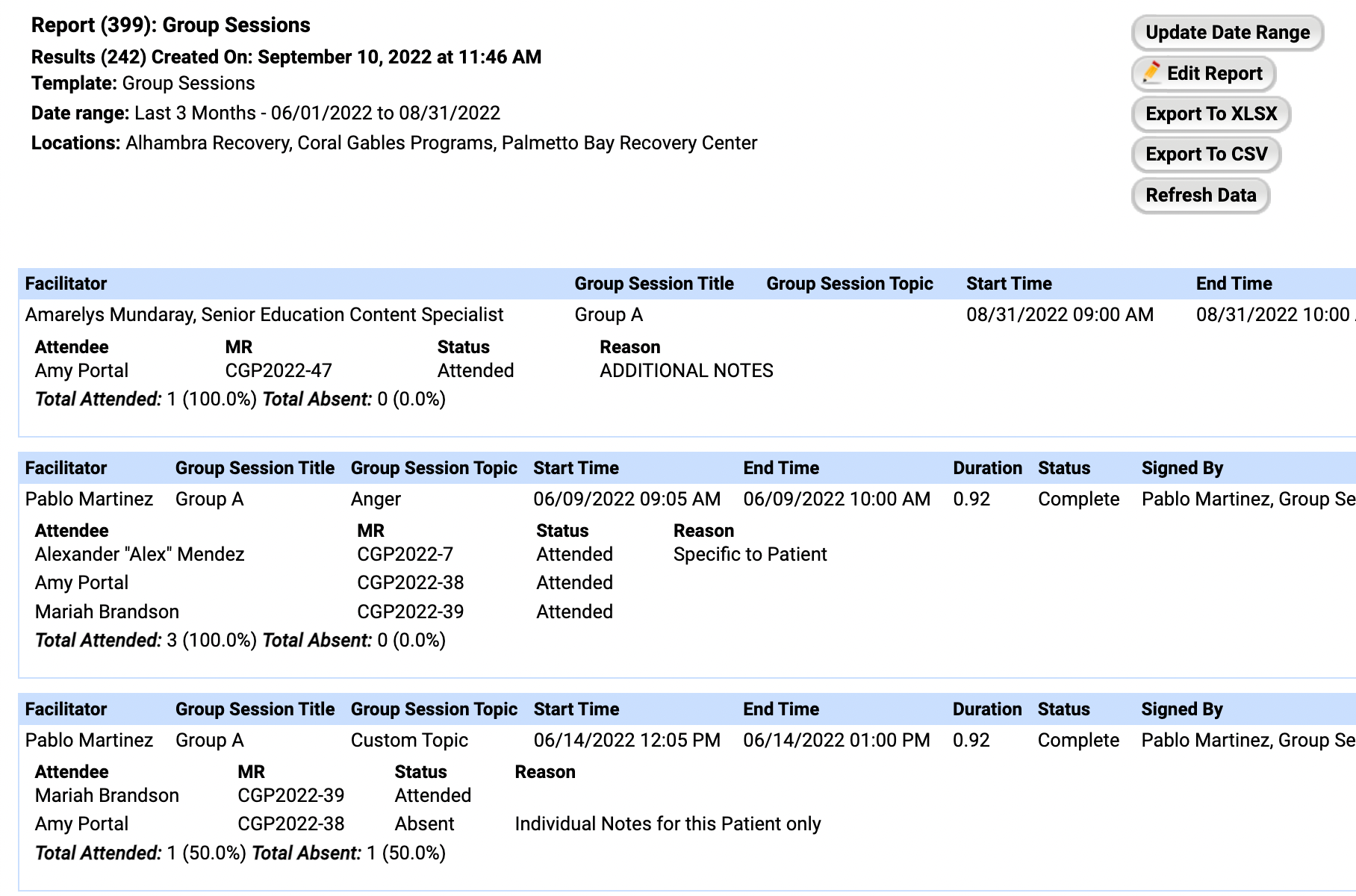
- From here, you can edit or export the report for further manipulation.
Master Instance
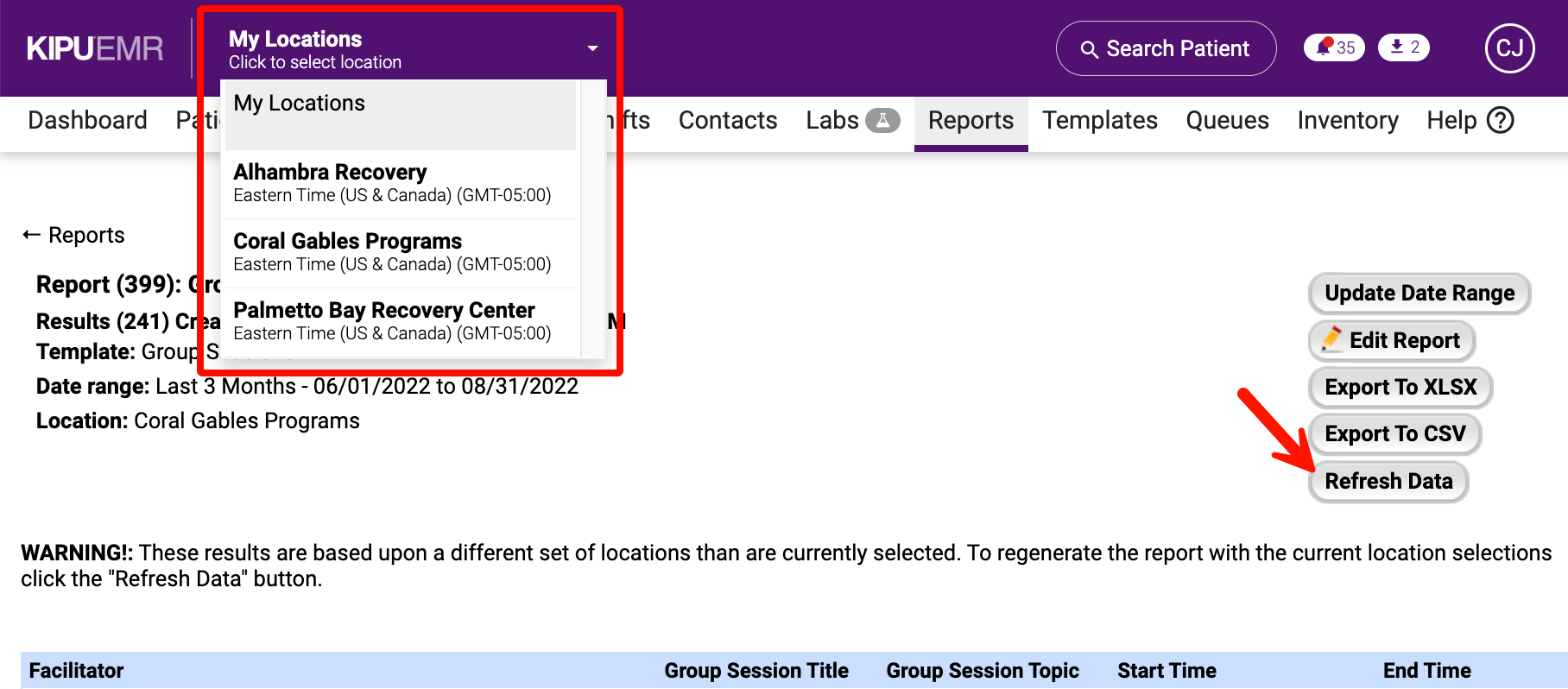
To run this report for a specific location in the master instance, select the Location from the header and click Refresh Data.
Note: If you need to report on how long the individual patients spent in group sessions, try running a Financial report for Billable items and filter for Group Sessions. Important: Only works if your group sessions are marked as billable.
Comments
0 comments
Article is closed for comments.