Users with access to Reports can also easily report and analyze active or resolved flags for all patients in an aggregated view under Reports > Flags.

The aggregated flags report includes helpful filters for Severity, Status, Category, and Date Range. Use the Date Range drop-down to select which set of data you'd like to search by Census, Created At, Resolved At, Start Date, End Date, Admission Date, or Discharge Date.
This report can also be exported to a CSV file.
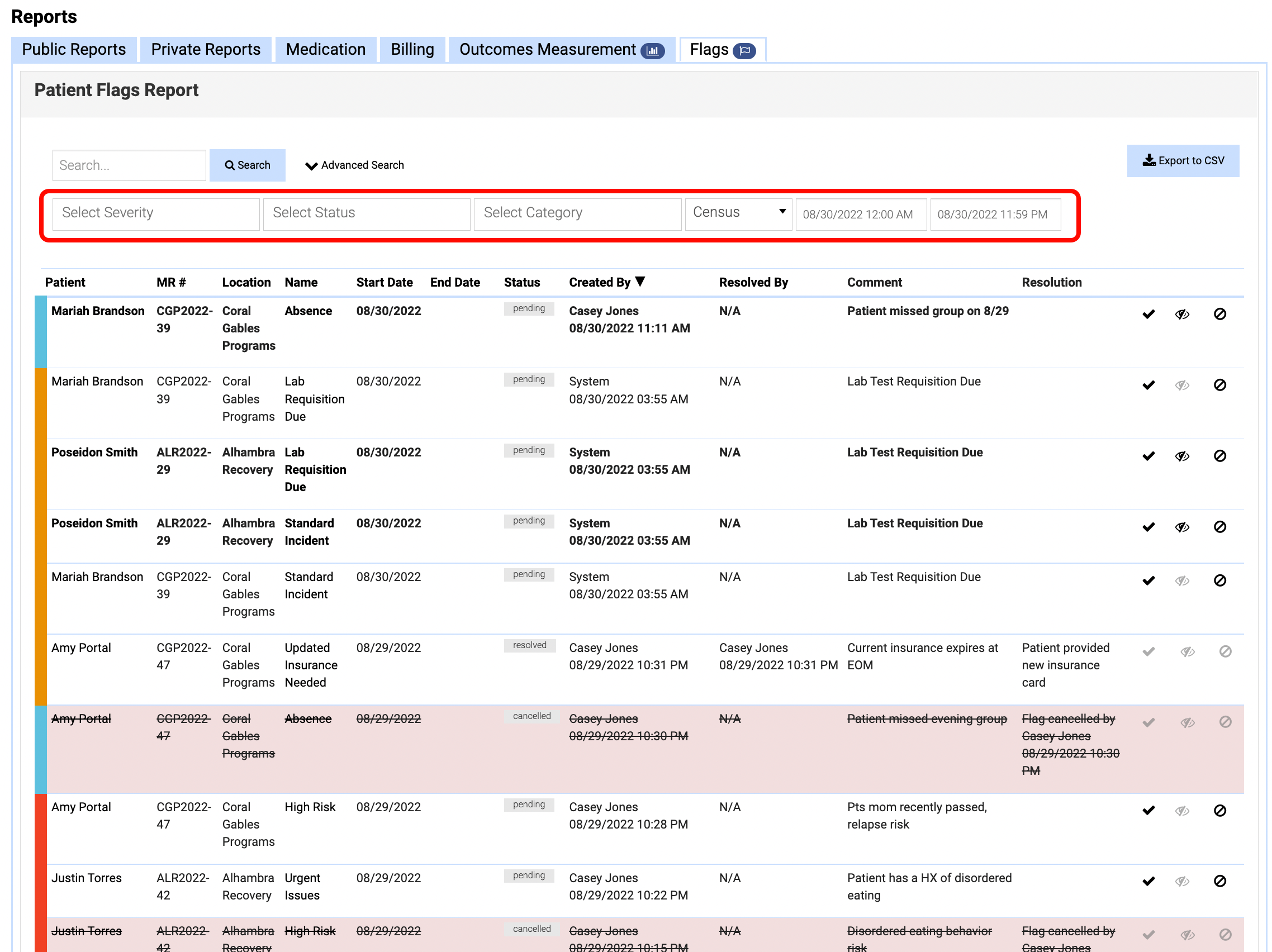
The Flags report includes the following data points:
- Patient
- MR Number
- Patient ID (if enabled for the Location)
- Location
- Name (of the Flag)
- Start Date
- End Date
- Status: Flags can have one of the following statuses:
- Pending: This means the flag is still active and pending a resolution or cancellation.
- Resolved
- Cancelled
- Created by: Who created the flag? This can be a user in your organization or system generated. This field will also display the date/time the flag was created.
- Resolved by: This column will display the name of the user who resolved the flag along with the date/time of resolution. If the flag was not resolved this display N/A.
- Comment: This field displays the Comment added to the flag (or the Flags description).
- Resolution: This field displays the Resolution reason added when the flag was resolved. This field is only required for Critical flags so Warning/Information resolved flags may be blank if the user chose not to complete the field.
- You can also use the icons to Resolve, Acknowledge, or Cancel flags from this page.
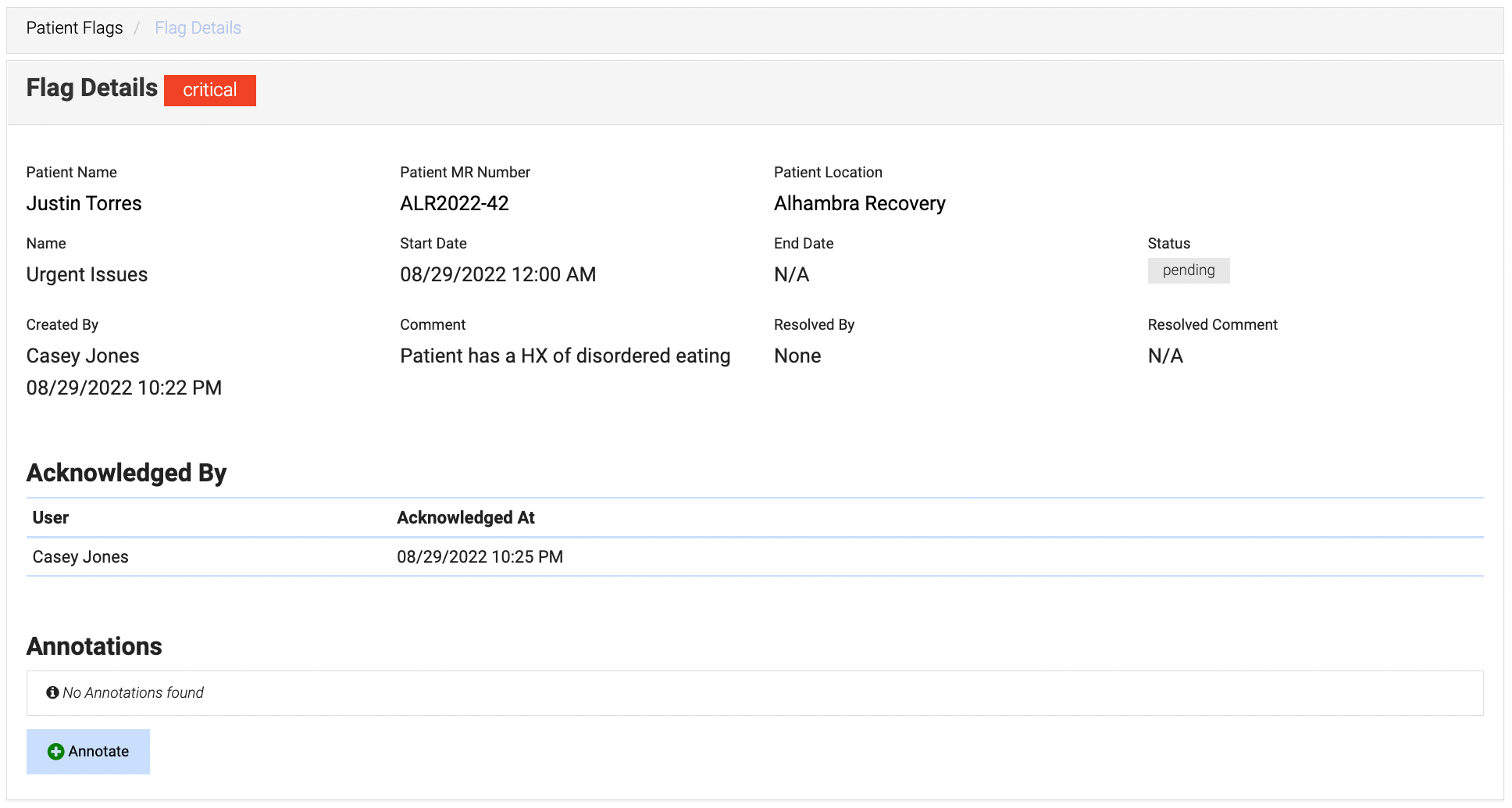
Flag Details
Click on the flag's Name to open a Flag Details section which displays more information about the flag including who has acknowledged it. You can also use this section to provide Annotations (e.g., notes).
Comments
0 comments
Article is closed for comments.